Let's face it—life moves fast. Between work deadlines, kids' soccer practices, doctor's appointments, and that never-ending grocery list, keeping track of the days can feel like herding cats. That's where a calendar clock steps in: not just a timepiece, but a silent organizer, a daily reminder, and sometimes even a conversation starter. Whether you're setting up a sleek 10.1 inch digital calendar for your home office, a larger 15.6 inch digital calendar for the kitchen wall, or a simple calendar days clock to help a loved one stay oriented, getting it right the first time matters. This guide will walk you through everything from unboxing to troubleshooting, so you can spend less time figuring out wires and more time enjoying the peace of mind a well-placed calendar clock brings.
Before diving into installation, let's make sure you know what you're working with. Calendar clocks come in all shapes and sizes, and understanding their differences will help you set yours up like a pro. Let's break down the basics.
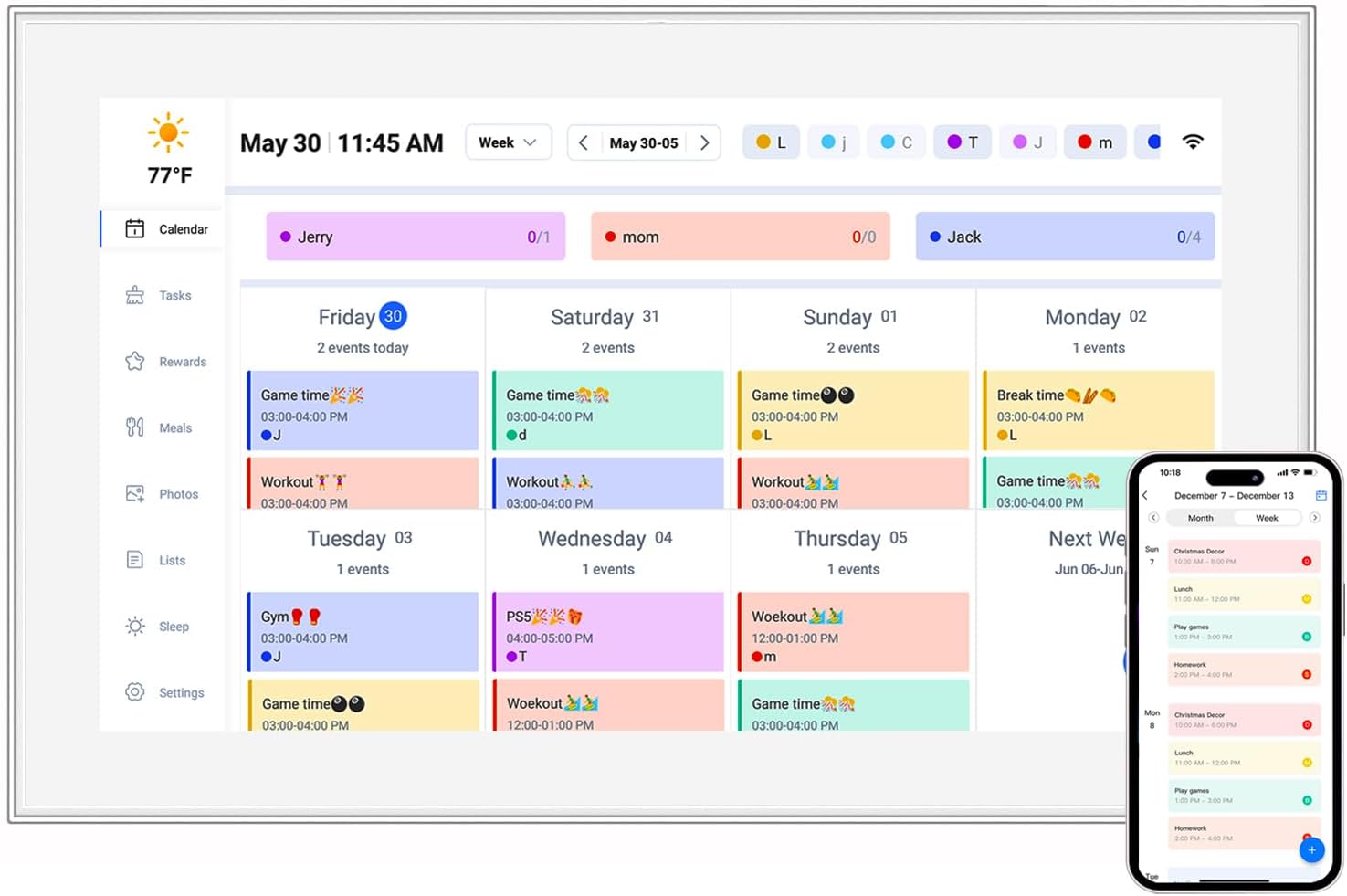
Analog calendar clocks have that classic charm—think wooden frames, numbered dials, and little windows that flip to show the date. They're simple, no-fuss, and great for traditional decor. But if you're craving flexibility (like syncing events from your phone) or larger, easier-to-read displays, digital is the way to go. Digital calendar clocks, like the 10.1 inch digital calendar or 15.6 inch digital calendar, often come with bright LED screens, customizable layouts, and even Wi-Fi connectivity. And then there's the calendar days clock—a hybrid of sorts, designed with clarity in mind, often featuring large text and bold colors to help seniors or those with memory challenges keep track of the day and date.
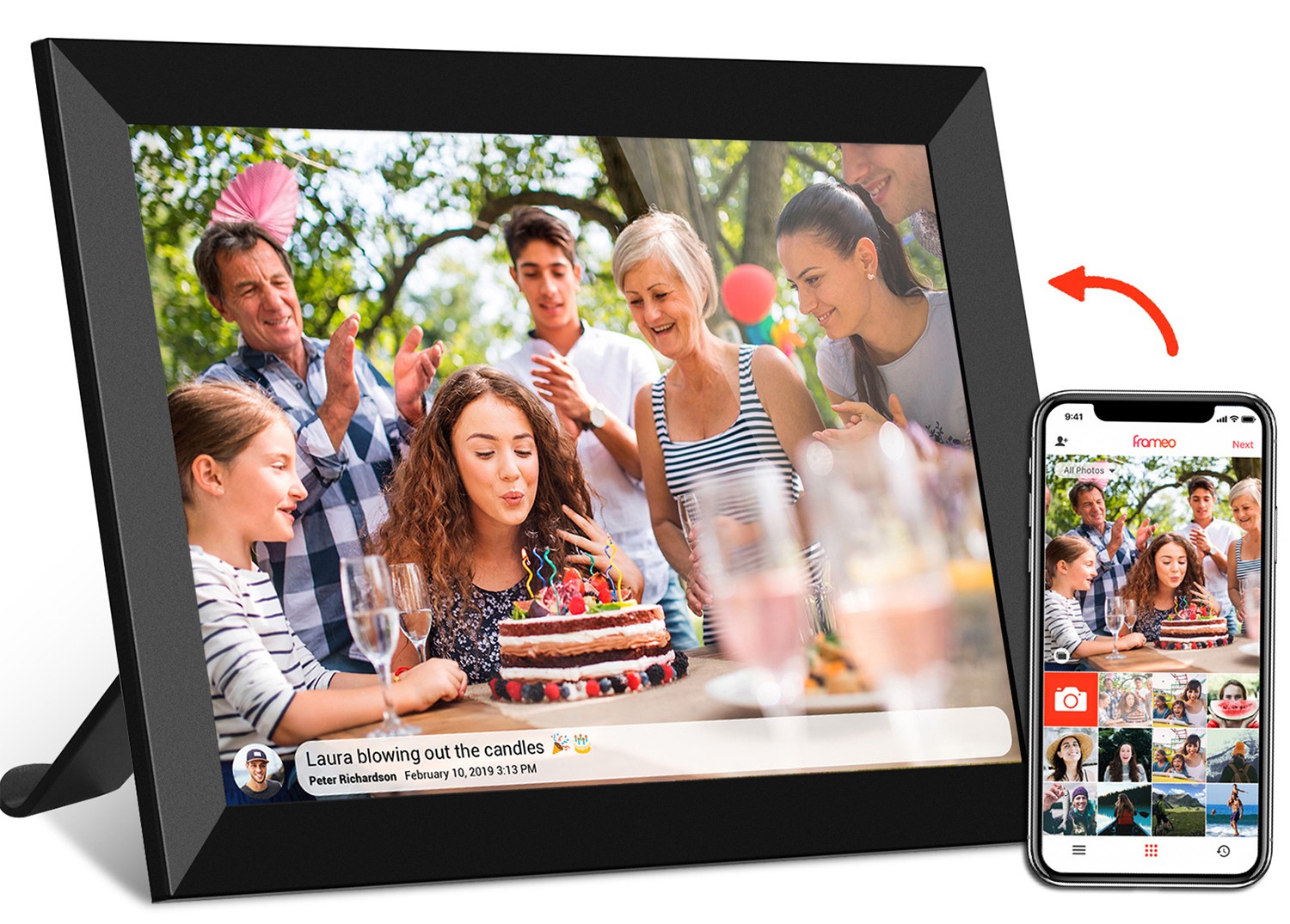
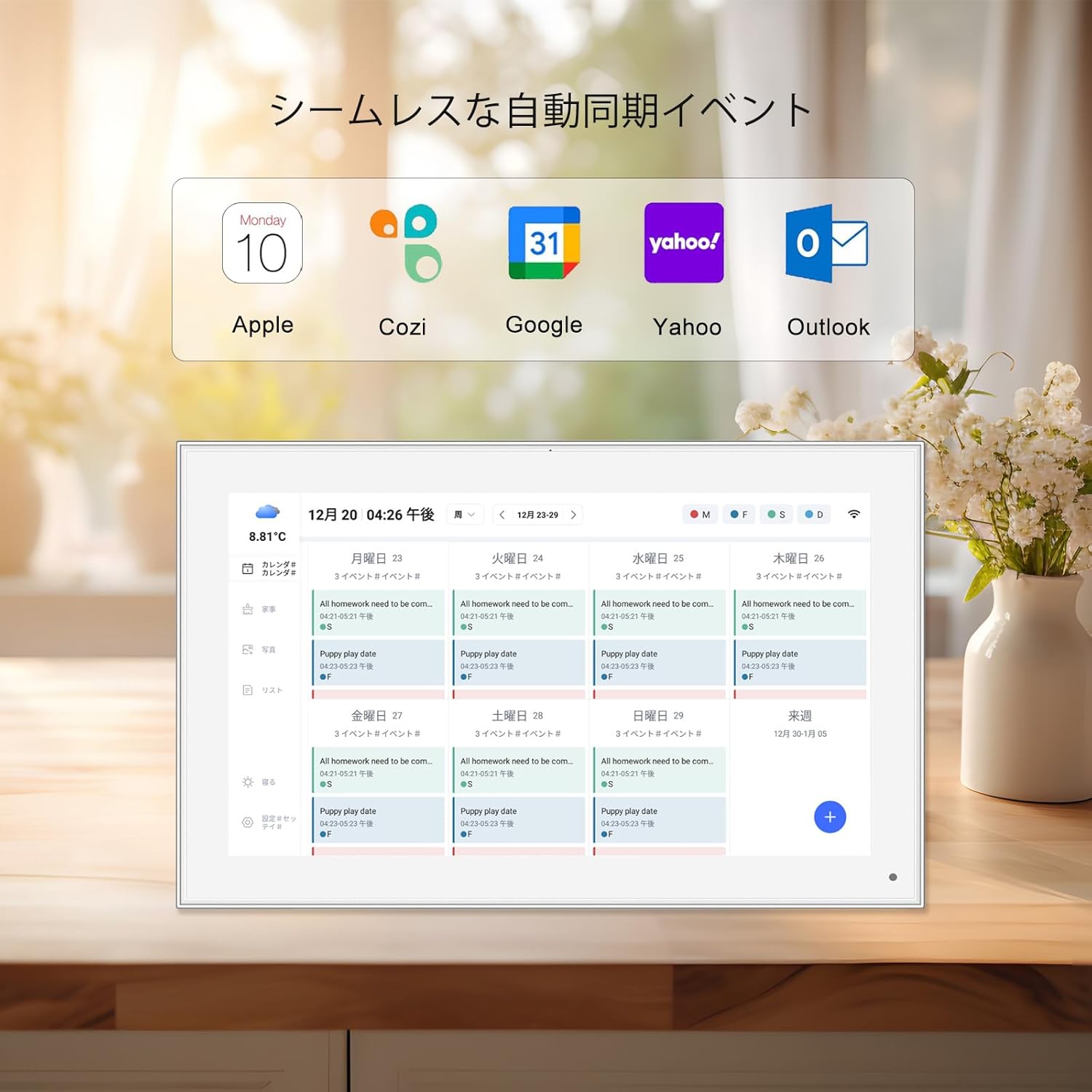
Basic digital calendar clocks plug in and display the date, time, and maybe the temperature—no extra bells and whistles. They're perfect if you just need a straightforward reminder of what day it is. Smart models, though? They're like having a personal assistant on your wall. Take the 10.1 inch wireless wifi digital photo frame, for example: while it's primarily a photo frame, many models double as digital calendars, letting you sync events from Google Calendar, receive photo updates from family, and even display the weather. If you love staying connected and hate manual updates, a Wi-Fi-enabled calendar clock is worth the slightly more complex setup.
When unboxing your calendar clock, keep an eye out for these must-have features: Display Size (10.1 inches vs. 15.6 inches—bigger isn't always better if it won't fit your space!), Power Source (battery-operated for portability or plug-in for 24/7 use), Brightness Settings (to avoid glare), and Auto-Sync (for smart models, to keep time and dates accurate without manual tweaks). For the 10.1 inch wireless wifi digital photo frame, check if it supports calendar apps—many do, making it a multitasker for photos and scheduling.
Installation day doesn't have to be stressful. A little prep work goes a long way. Let's walk through the steps to ensure you're ready to go.
First, pick the perfect spot. For a 15.6 inch digital calendar, you'll want a wall or desk with enough room—measure twice to avoid that "oops, it's too big!" moment. Kitchens, entryways, and home offices are popular choices since they're high-traffic areas where everyone can check the date. For a calendar days clock intended for a senior, place it at eye level, away from direct sunlight (which can wash out the screen) and glare from overhead lights. If you're using a 10.1 inch wireless wifi digital photo frame as a calendar, consider a spot near a power outlet and within range of your Wi-Fi router—no one wants a laggy calendar!
Most calendar clocks come with everything you need, but it never hurts to have these on hand: a Phillips-head screwdriver (for wall mounting), a level (to avoid a crooked display—trust us, it bugs you more than you think), a measuring tape, and a microfiber cloth (to wipe dust off the screen before setup). If you're mounting a heavier model like the 15.6 inch digital calendar, grab some wall anchors—better safe than sorry!
Rip open that box (slowly—we don't want to damage anything!) and lay out all the parts. You should find the calendar clock itself, a power adapter, a user manual, and maybe mounting hardware (like screws or a stand). Take a quick peek at the screen for scratches and the cords for frays. If something looks off, contact the seller right away—better to fix it now than after you've drilled holes in the wall.
Now for the fun part: setting up your calendar clock! We'll cover three common models to give you a sense of the process. Remember, every device is a little different, so keep that user manual handy—it's your best friend here.
The 10.1 inch digital calendar is a popular choice for desks or small walls—it's compact but still easy to read. Here's how to get it up and running:
The 15.6 inch digital calendar makes a bold statement on any wall—great for families who need a central hub. Here's how to mount it securely:
Calendar days clocks are designed for simplicity, making them ideal for seniors or anyone who prefers a no-nonsense display. Here's the setup:
If your calendar clock is Wi-Fi-enabled (like the 10.1 inch wireless wifi digital photo frame, which can double as a calendar), connecting it to your network unlocks cool features like syncing events or receiving photo updates. Here's how:
Even with the best prep, things can go wrong. Don't panic—most issues are easy to fix. Let's troubleshoot the usual suspects.
First, check the basics: Is the power cord plugged in all the way? Try a different outlet—maybe the one you're using is dead. If it's battery-operated, swap in fresh batteries. For plug-in models, inspect the cord for damage—if it's frayed, stop using it and contact the manufacturer for a replacement.
Wi-Fi can be finicky. Try moving the calendar closer to your router—walls and appliances can block signals. Restart both the calendar and the router (unplug the router, wait 30 seconds, plug it back in). If your password has special characters, double-check that you entered them correctly—some on-screen keyboards hide symbols behind a "Shift" key. Still no luck? Check if your router is on 2.4GHz or 5GHz—many smart calendars only work with 2.4GHz networks.
A flickering screen might mean a loose power connection—wiggle the cord gently to see if it stabilizes. If the screen freezes, try a hard reset: Unplug the calendar, wait 10 seconds, then plug it back in. For blank screens, check the brightness settings—maybe it's turned all the way down! If none of these work, the screen might be faulty—contact customer support.
Your calendar clock works hard for you—return the favor with a little TLC. Here's how to keep it looking and working like new.
Still unsure which calendar clock fits your needs? This table breaks down four popular options to help you decide.
| Model Name | Display Size | Key Features | Best For | Setup Difficulty |
|---|---|---|---|---|
| 10.1 Inch Digital Calendar | 10.1 inches | Plug-in, basic date/time display, customizable layouts | Desks, small walls, budget-friendly needs | Easy (5-10 minutes) |
| 15.6 Inch Digital Calendar | 15.6 inches | Wall-mountable, large display, optional Wi-Fi | Family kitchens, home offices, shared spaces | Moderate (15-20 minutes, due to mounting) |
| Calendar Days Clock | Varies (8-12 inches) | Large text, simple interface, plug-in or battery | Seniors, memory care, anyone who prefers clarity | Very Easy (5 minutes) |
| 10.1 Inch Wireless Wifi Digital Photo Frame (Calendar Mode) | 10.1 inches | Wi-Fi, photo display, calendar sync, app connectivity | Tech-savvy users, families who love photos + scheduling | Moderate (10-15 minutes, due to Wi-Fi setup) |
Installing a calendar clock might seem like a small task, but it's one that can transform how your household runs. Whether it's the 10.1 inch digital calendar keeping you on track at your desk, the 15.6 inch digital calendar reminding the family of soccer practice, or the calendar days clock giving a loved one peace of mind, these devices are the unsung heroes of daily organization. With a little prep, patience, and the tips in this guide, you'll have your calendar clock up and running in no time—leaving you free to focus on what really matters: living your life, one well-planned day at a time.
So go ahead—hang that calendar clock, sync those events, and take a moment to appreciate the calm that comes with knowing exactly what day it is. You've earned it.